 FrameLathe
Settings → AI apps · MCP server
Let your AI app enhance video on your own PC
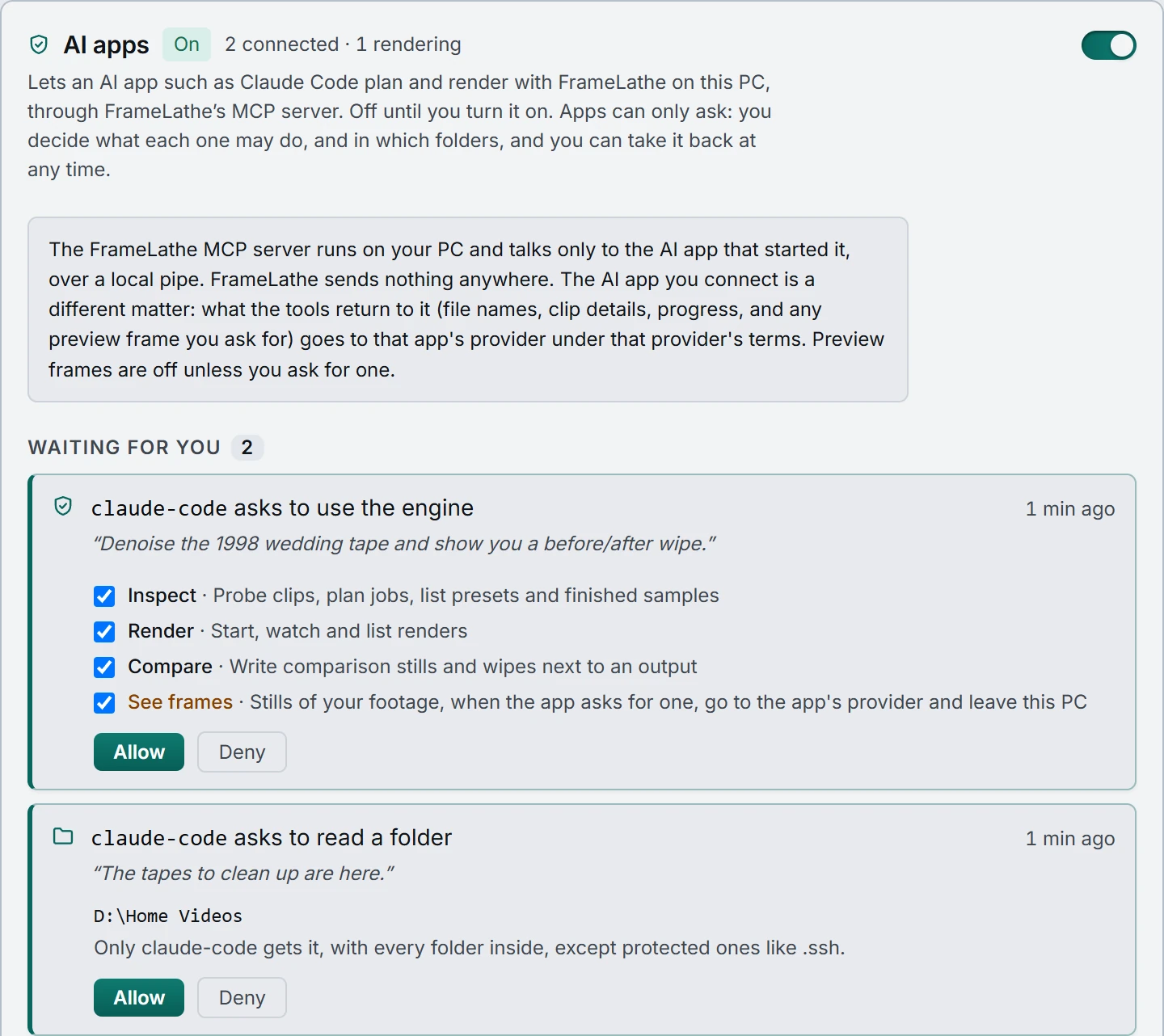
FrameLathe includes an MCP server. An AI app that can start a local MCP server, such as Claude Code or Cursor, can look at your clips, plan a job and what it will cost in time and disk, render it on your graphics card, and check and compare the result. It runs on your Windows PC and talks only to the app that started it, over a local pipe. FrameLathe uploads nothing.
It is off until you turn it on, an app can only ask, and you approve each permission and each folder.
- Where it runs
- On your PC, over stdio. No network listener, no upload.
- Default
- Off. Nothing is allowed until you approve it.
- Works with
- AI apps that start a local MCP server, such as Claude Code and Cursor.
- GPU
- One render at a time, never alongside your own queue.
What an AI app can do
Permissions come in four groups. An app asks for the ones it needs, and you can untick any of them before you allow the request.
| Permission | What it lets the app do | MCP tools |
|---|---|---|
| Inspect | Look at clips (size, frame rate, interlacing), plan a job and its time and disk cost, estimate a whole batch, check what this PC's graphics card can run, and check that a finished file is what its delivery format promises. | probeplanestimate_batchlist_presetslist_samplesassesspick_sample_rangemachine_capabilitiesverify_output |
| Render | Start, watch, list and cancel renders. A render starts from a plan the app made first. | runstatuslist_jobs |
| Compare | Write comparison stills and before/after wipes next to an output, and look for frames where an output drifts from its source. | comparewipehunt_artifacts |
| See frames | Put a still of your footage into the app's reply. The app has to ask each time, and the still goes to the app's provider, so FrameLathe asks you twice before allowing it. | inline images in tool results |
An app also needs a folder before it can open a file: read for sources, write for renders and comparisons. Folder grants belong to the one app that asked, and protected folders such as .ssh are refused.
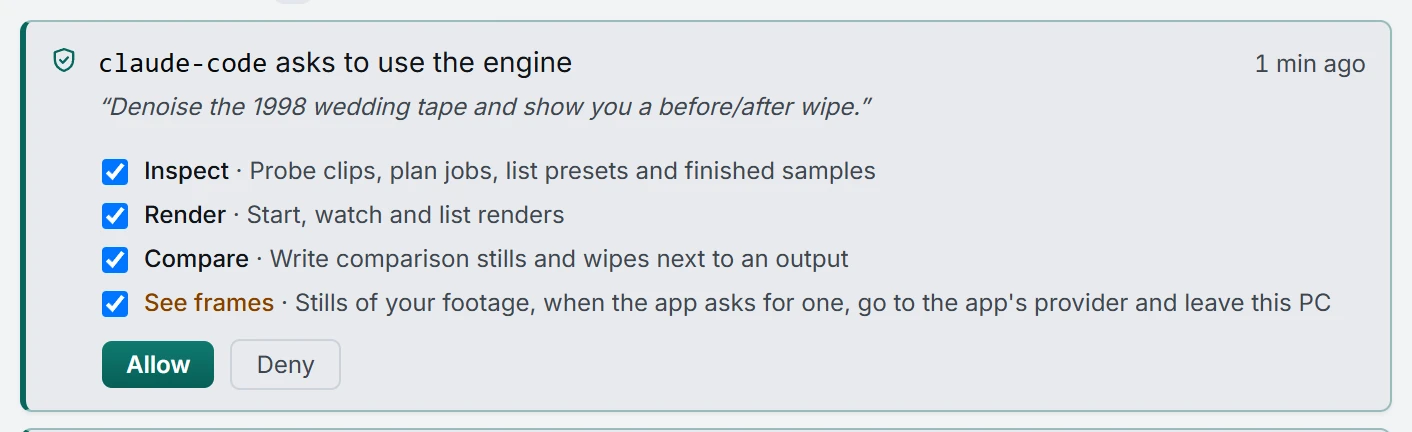
Things you can ask for
Once you have allowed it, you talk to your AI app as usual. For example:
- “Probe every clip in D:\Home Videos and tell me which ones are interlaced.”
- “Plan Export Ready for this folder and tell me how long it will take and how much disk it needs.”
- “Denoise this tape and write a before/after wipe next to the output.”
- “Check the finished file is what its delivery format promises.”
- “Look for frames where the output drifts from the source.”
The app plans first, so it can tell you the time and disk a job needs before anything runs. It sees the same presets you do, and it cannot do anything the permissions you granted do not cover.
Connect an AI app in four steps
- Open Settings → AI apps and turn it on.
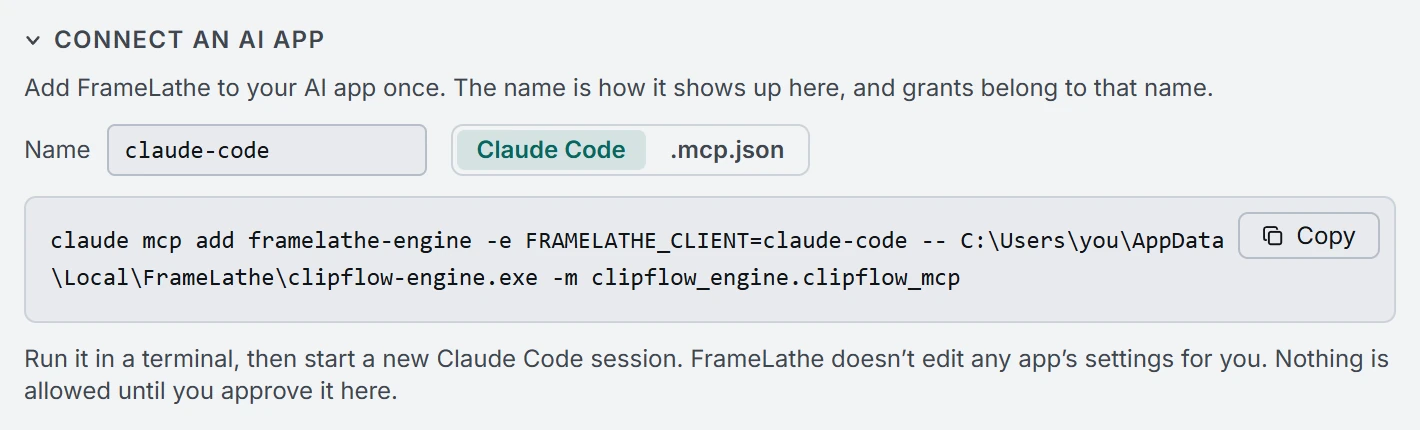
- Open Connect an AI app, pick a name for the app, and choose Claude Code for a terminal command or .mcp.json for a settings block.
- Copy it into your AI app. It names the FrameLathe engine by its full path on your PC; FrameLathe does not edit any app's settings for you.
- Restart the AI app. Its first request appears in Settings → AI apps for you to answer.
What stays on your PC, and what does not
The FrameLathe MCP server runs on your PC and talks only to the AI app that started it, over a local pipe. FrameLathe sends nothing anywhere, and your footage is never uploaded by FrameLathe.
The AI app you connect is a different matter. What the tools return to it (file names, clip details, progress, and any preview frame you ask for) goes to that app's provider under that provider's terms. Preview frames are off unless you ask for one. See What leaves the machine.
Watch it, stop it, take it back
Rendering now lists each app's renders with progress, time left and a Stop button. Apps lists every app, whether it is connected, its last call and what it holds. Revoke takes all of it back, and Remove takes back one folder. Turning AI apps off refuses every app on its next call and stops their renders. A new request raises a notice wherever you are in FrameLathe.
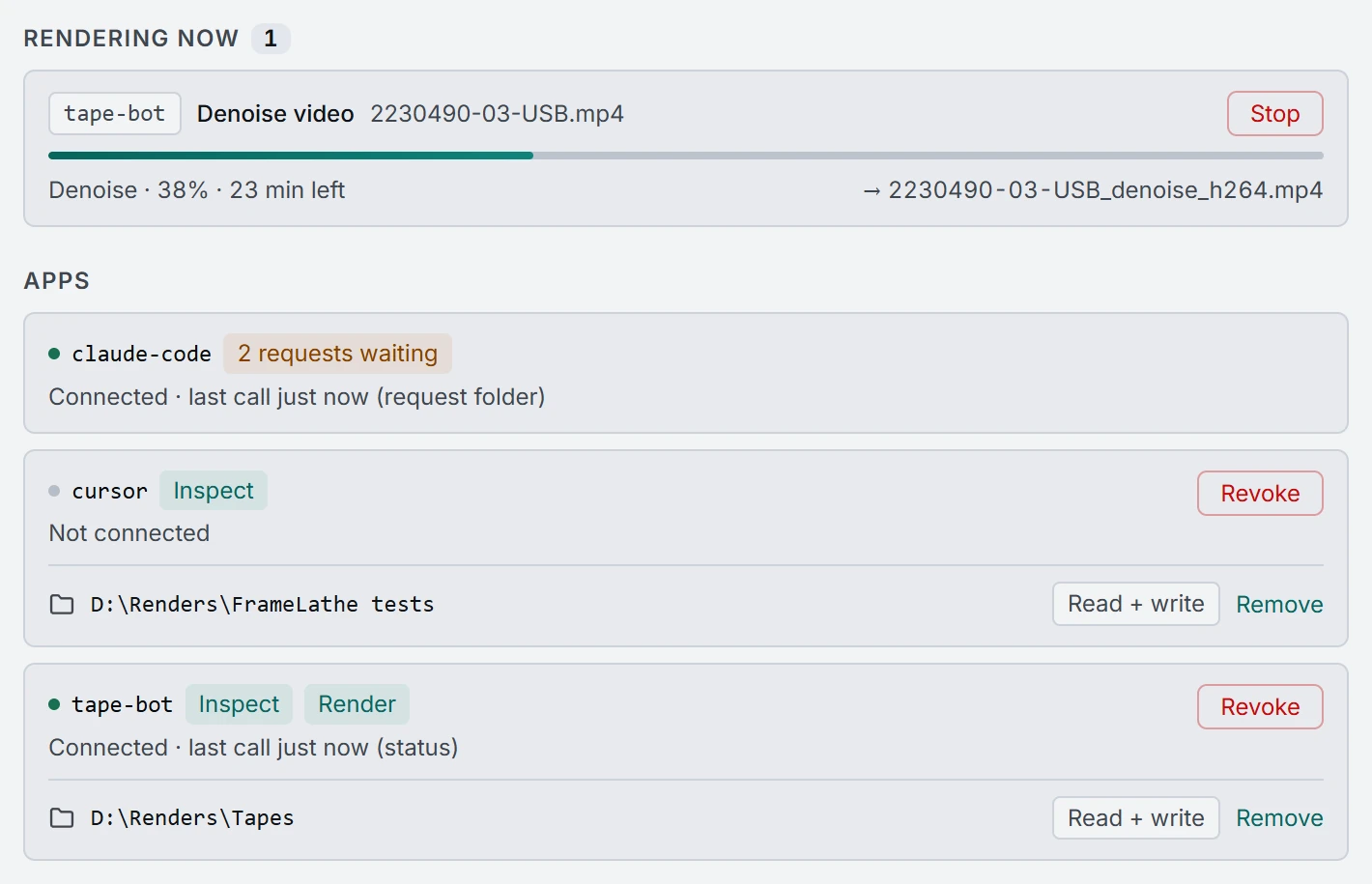
One graphics card does one render at a time. An app's render is refused while your queue is rendering, and Start is refused while an app's render runs; a clip the queue reaches meanwhile waits rather than failing.
Questions
What is the FrameLathe MCP server?
It is the part of FrameLathe that speaks the Model Context Protocol, the standard way an AI app talks to a program on your computer. With it on, an AI app that can start a local MCP server can look at your clips, plan a job, render it on your graphics card, and check and compare the result, the way you would in the app.
Which AI apps can use it?
Any AI app that can start a local MCP server. Claude Code and Cursor are two. Settings → AI apps gives the command for Claude Code or an .mcp.json block for apps that read one.
Does my footage get uploaded?
FrameLathe sends nothing anywhere: the MCP server runs on your PC and talks only to the AI app that started it, over a local pipe. What the tools return to the AI app (file names, clip details, progress, and any preview frame you ask for) goes to that app's provider under that provider's terms. Preview frames are off unless you ask for one.
Is it on by default?
No. It is off until you turn it on in Settings → AI apps. After that an app can only ask: you approve each permission and each folder, and you can revoke them at any time.
Do I need a licence?
Rendering through an AI app needs an activated licence, like Start. Without one, looking at clips and planning still work, and a render reports that a licence is needed.
Can an AI app render while my queue is running?
No. One graphics card does one render at a time. An app's render is refused while the queue is rendering, and Start is refused with a message while an app's render runs. If the queue reaches a clip while an app is rendering, it stops with that clip still waiting; no clip fails because of it.
Is this the assistant on the FrameLathe website?
No. The website assistant answers from the published docs and never sees your footage. The MCP server is for an AI app on your own PC.
Set it up
The full guide covers turning it on, every permission, folders, the licence, and what to do when a render is refused because the GPU is busy.