 FrameLathe
2026-11-06
If you already work with an AI app such as Claude Code or Cursor, you can now hand it the dull half of a restoration job. FrameLathe includes an MCP server, the standard way an AI app talks to a program on your computer. The app can look at a folder of clips, plan a job, tell you what it will cost in time and disk, render it on your graphics card, and check the result against the source.
It does that on your PC. The server talks only to the app that started it, over a local pipe, and FrameLathe sends nothing anywhere.
The app asks; you decide
Nothing is allowed until you say so. AI apps are off until you turn them on in Settings → AI apps, and after that every app has to ask. A request shows the app’s reason and the four kinds of access it wants: Inspect, Render, Compare and See frames. You can untick any of them before you allow it, and each folder is a separate request.
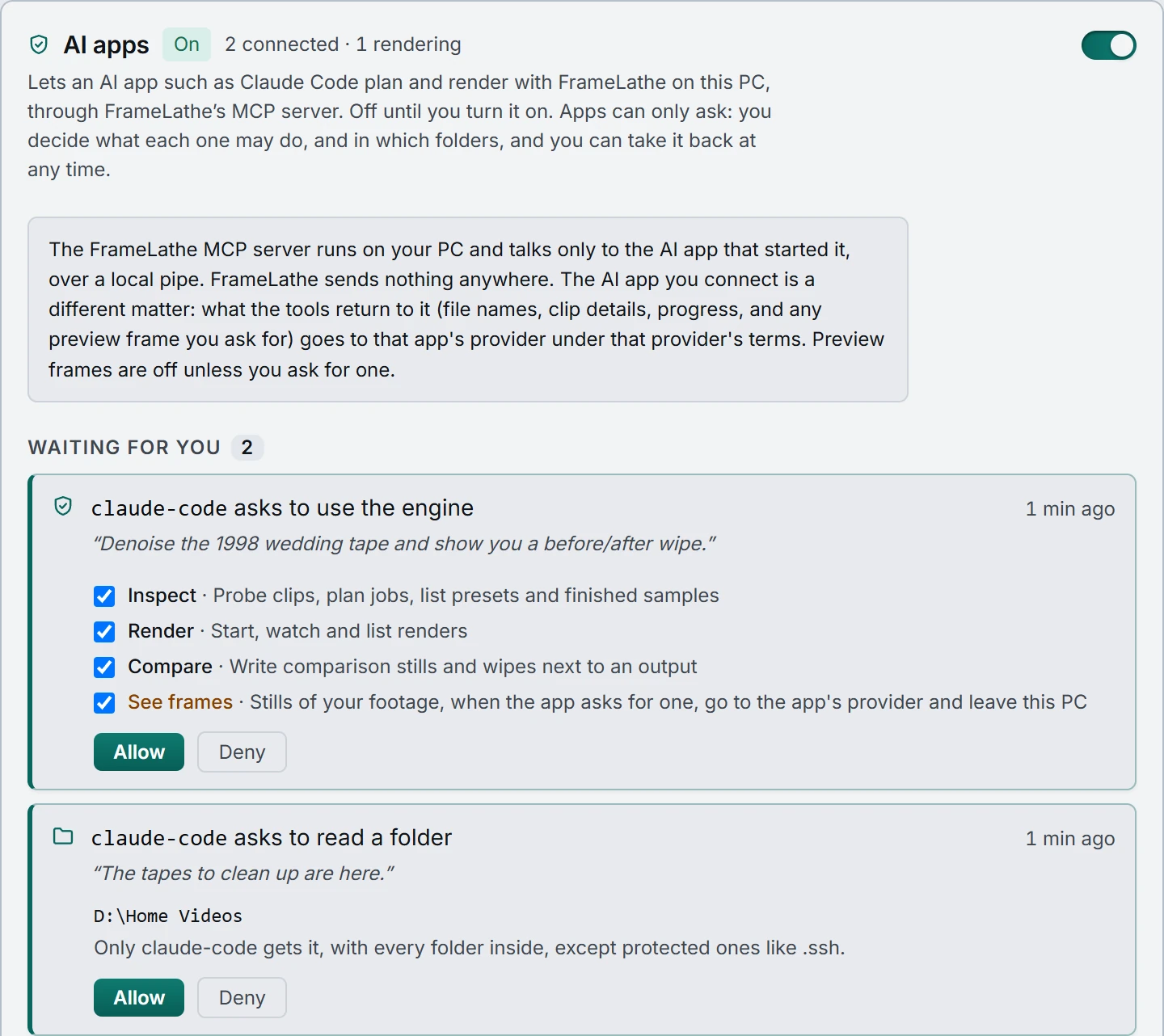
See frames is the one to think about. Your AI app’s model runs at its provider, so a still of your footage in a reply goes there too. That is why preview frames are off unless the app asks for one, and why FrameLathe asks you twice before allowing it. Without it, comparisons and wipes are still written next to the output for you to open yourself.
What a session looks like
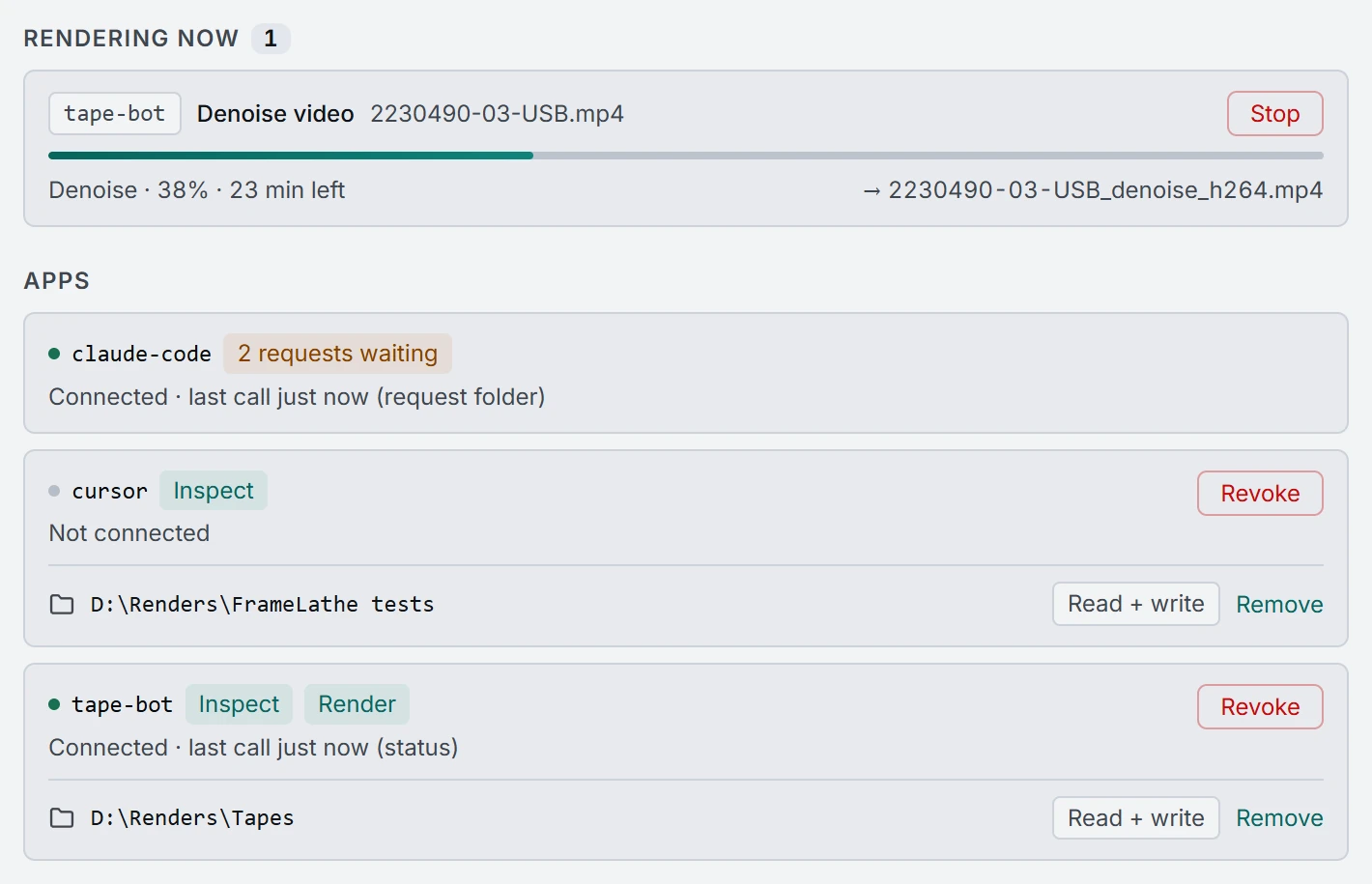
You talk to the AI app as usual: “probe these tapes and tell me which ones are interlaced”, “plan Export Ready for the folder and tell me how long it will take”, “denoise this one and write a before/after wipe next to it”. The app plans before it renders, so the time and disk cost come back before any work starts. A render shows up under Rendering now with its progress and a Stop button, the same as anything else on your graphics card.
It shares the GPU with you
One graphics card does one render at a time. An app’s render is refused while your queue is rendering, and Start is refused while an app’s render runs. If your queue reaches a clip while an app is rendering, that clip waits instead of failing.
Rendering through an AI app needs an activated licence, like Start. Looking at clips and planning work does not.